Tags: C, GCC, OpenGL
I stumbled upon weird behavior of OpenGL (OGL 1.4, Catalyst 8.612, GCC if that matters): I was setting material properties with glMaterialfv and for some reason this did not change the parameters if done multiple times in succession. I.e. when I drew two versions of the same object on the screen side by side with different material parameters, they both looked the same.
The reason seems to be I was using a static array to store the parameters like this:
void set_params(const Color& diffuse)
{
static float d[4] = {diffuse.r, diffuse.g, diffuse.b, diffuse.a};
glMaterialfv(GL_FRONT, GL_DIFFUSE, d);
}
The only explanation I can think of is OpenGL doesn’t copy or use the values before glMaterialfv returns but instead reads them later, at which time there could be different values in the array (because it’s declared static) set for some other object being drawn. But that doesn’t explain why it can read the array (which AFAIK will be located on stack) later because the address to the then-valid location on the stack most likely won’t point to the parameters. Maybe the driver assumes anything that’s not on the stack can be used later and stuff located on stack will be copied. Who knows?
In any case, not declaring the array as static fixed the problem.
Tags: Wordle
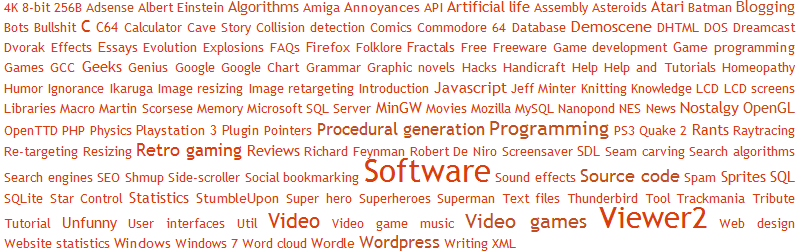
More Wordle madness. Try to guess if you recognize the works summarized below (no cheating allowed!)


The first is easy but the second probably is something you uneducated mooks should read.
Tags: Video games, Word cloud, Wordle
Here’s a superficial analysis on game titles. I have used Wordle to generate a word cloud from lists of recurring phrases in game titles. What I generally wanted to know is how a generic title from 1985 would differ from a generic title from 2009. The size of a word or phrase is relative to how many different titles contain the text and also how complex the phrase is (so one word long “phrases” won’t dominate the more interesting, relatively rare phrases).
What the word clouds show are very generic words like “space” or “super”, the number two (a game series is more likely to be two than three games long) and multiple word phrases which usually are popular game series, clichés (Foobar of Doom) or games with many versions or expansion packs. It is interesting that the generic words tend to be the same across 30 years — all generations of gamers seem to love dragons. Another point of interest is that a phrase from a 1980s game title is much less likely an established brand as it most likely is in the 1990s. Also, in the 1990s is became common that a game title has the release year attached to it, since EA et al started to churn out minor updates to their sports games as brand new releases.
30 years of games. Find your favorites!
1980-2009
1980-1989
1990-1999
2000-2009
Tags: Bots, Plugin, Search engines, Website statistics, Wordpress
Seen is a WordPress plugin that shows when and which bots visit your blog. This can be useful to see if a page ever gets visited by bots (so you can adjust robots.txt or so) or simply to amuse yourself if you are obsessed with what is happening with your blog (everyone knows you are).
Additionally, you can get a better understanding of how fast a page gets indexed by search engines and how fast it gets reindexed after you have modified the page. I found it interesting to note what’s the general strategy of different bots, now I know Yahoo really keeps visiting the pages and GoogleBot just very rarely visits older pages (but indexes new pages really quickly).
The plugin uses some simple heuristics to decide if a visiting user agent is a bot and puts it in a list of suspected bots (along with data of which pages it visited and when). You can then remove all the user agents that are not bots. Basically, This means you don’t need to manually add any bots at all, you simply weed out the false alerts. Of course, you can explicitly specify bots by their user agent string or host address.
Installing and using Seen
After installing the plugin (extract the zip file in wp-content/plugins/ and activate the plugin) data will be automatically recorded. You can monitor what is happening directly from on the Dashboard (there will be two new widgets, a list of bots on the watchlist and a list of unindexed pages). Also, if you go to Dashboard > Seen you can see more detailed lists and also the suspected bots list. I think it’s all quite self-explaining. Hint: you can click the star to add bots to the watchlist — clicking the yellow star will remove them.
In the options you can combine bots (i.e. when two or more entries have a differing user agent string but really are the same bot), delete them and edit them. The different categories are there so you can e.g. put Technorati bot in “Search engine (blogs)” which makes Seen not care if the bot has seen the latest comments. You can also categorize bots as “Browser” which means their data will be hidden as it probably won’t interest you.
Seen 0.5.1 (Supports WP 2.7 thru 2.8)
What’s new in 0.5.1
See comment #2 below.
Note: This is not yet 1.0 quality but it should work OK. By downloading and installing the plugin, you acknowledge no responsibility lays on the plugin author.
Tags: Firefox, Thunderbird, Windows 7
Quick summary
Here is a quick summary (based on the search terms people use when finding this page):
- Will <insert software name here> run on Windows 7? In short: Yes, most likely.
- Will I be able to open documents created using <insert software name here> on 64-bit Windows 7? Yes, most likely. The 32-bit to 64-bit transition only affects the applications itself, not files. And, most of all you can simply use the 32-bit version of the program like you used to use.
- The whole 32-bit vs. 64-bit thing is a non-issue and gets better all the time as developers update their software. A bigger issue is if a program works on Windows 7, which it should if it’s written at least somewhat properly (which is the case with 95% of software).
- Yes, even games still work quite well, especially those released only a year or two ago
- Do not simply format C: — you need to reinstall but you can copy a lot of stuff from the previous Windows installation (see below how)
- No major problems in daily use
- No major slowdowns even with Aero enabled
- If you are knowledgeable enough to worry about the above, you can overcome most problems/differences you’ll encounter
- Just do it already!
Introduction
Here’s some quick pointers and answers to questions I, a stereotypical diehard XP user, had that made me hesitate trying out the new Windows 7 RC. I didn’t immediately find such info on the webs and as a chronic luddite I didn’t even think about finding out until absolutely necessary.
My goals, as always with OS installs, were to minimize reinstalling of apps and data so that I can pretty much pick up where I left. Even though it’s common for even experienced or otherwise sane people to advocate a simple reformat of the hard drive and installing everything yet again, it’s just magical thinking to me (although it does make things simpler, but more laborous). In my experience, it takes just a bit of planning to avoid that. A tiny bit. What I did was taking backups of the most vital data (emails, most cherished boobie picture bookmarks and such) but I knew beforehand that’s not a part of plan B, even.
Then, I just installed the new OS.
First impressions
After some waiting and a reboot or two, the following is a list of what went through my head:
- I was worried about if old programs still work. Most programs you used to use in 32-bit XP should work OK. You simply drop them in C:\Program Files (x86). Generally, I think you should not have trouble with common (non-game) programs because they are not native 64-bit code but see below.
- Windows 7 didn’t remove my C:\Documents and Settings, even though for a short moment I thought it did. It’s simply relocated to C:\Windows.old, as are the Program Files folder and of course C:\Windows is there too in case you need it.
- The Application Data and the Local Settings\Application Data folders that previously were right under the user directory are now in C:\Users\kometbomb\AppData\ and C:\Users\kometbomb\AppData\Local\, respectively. I just dropped the Firefox and Thunderbird profile folders in there and here I am again with the same setup.
- I immediately noticed the way I set Viewer2 as the default program for image files no longer works in Windows 7, so this might be a minor annoyance in case someone else does it the way I do. In the Control Panel there’s a working way to change the default programs manually, although I would hate to do it for more than the 4 different extensions Viewer2 needs. It seems you have to click every extension through and select the program you want to open them. Stuff like this probably is avoided if the program is done exactly as the MS specs tell etc. but the reality is that not everyone did that.
- You will have trouble with file permissions if you were using NTFS (especially if this is your first time with more restrictive permissions), but this has always been the case if you move files around inside the same OS and the file owner is different (i.e. you but under a different OS etc.). Currently, I
have had an interesting problem which causes some files being unable to open even though the folder has the permissions set as they should be. Even Explorer shows the files without the modification date and most programs report they can’t find the file (which in reality means they can’t open it even though the file is there).
Found a solution: some (seemingly random) files are recognized as coming from another computer (i.e. my previous OS) and they have to manually be unblocked (file properties -> Unblock). I don’t know why 99% files that are in the same directory work without a question…
Personally, I think they could have done without this kind of stuff somehow. Yeah, big boys’ OS’s have that kind of stuff but it’s just confusing if you really don’t want to know about that. After all, it’s the computer that should do the work. It’s kind of interesting how otherwise the interface is very much like something your mom would use after a bit of practice but if you just right click a file and go in the properties, there be dragons there.
Problems
After a week months of use, here’s the problems I have encountered:
Overall, I conclude there will be some problems but nothing that you can’t fix. I am happy with Windows 7 and relieved the whole 32/64-bit issue was nothing but a overblown scare. Some things about the GUI I don’t like but then again it’s usually just something you have to learn to do a bit differently, not that you can’t do something anymore.
Useful tips
How to migrate your old Firefox/Thunderbird profiles
-
Install Firefox and run once so all the directories and files will be created.
-
Exit Firefox.
-
Go to C:\Users\YourName\AppData\Roaming\Mozilla\Firefox\Profiles (AppData might be hidden, you can simply just type in the path and press return).
-
Copy the old profile directory (e.g. C:\Documents and Settings\YourName\Application Data\Mozilla\Firefox\Profiles\dl34875xyz to the Win7 directory above. If you have multiple profiles, just copy them all.
-
Copy C:\Documents and Settings\YourName\Application Data\Mozilla\Firefox\profiles.ini to C:\Users\YourName\AppData\Roaming\Mozilla\Firefox\profiles.ini. Also, open the .ini with Notepad and double check the lines that say “Path=Profiles/xyz123.default” etc. are relative, i.e. that the path starts with “Profiles/“.
-
Open Firefox and it should now load your old default profile!
To migrate Thunderbird profiles, do the same for the Mozilla\Thunderbird directory.
A general way for migrating programs and settings
This should work for programs that do not use the registry to store settings. Note that this also means uninstall information will not be migrated and you may need to delete files manually. Try the below method only if you have a basic understanding what you are doing (which said I’ll add it’s not hard at all — just don’t blame me for anything you did.)
I assume the old files from the previous installation are in C:\Windows.old which should be the default.
-
Copy the program folder from C:\Windows.old\Program Files to C:\Program Files (x86)
-
Copy the settings folder from C:\Documents and Settings\Username\Application Data\Local Settings to C:\UserData\Username\AppData\Roaming. You may need to find out which folder to move but generally it’s C:\Documents and Settings\Username\Manufacturer Name\Software Name
-
Create a shortcut on the desktop by dragging C:\Program Files (x86)\Software Name\Software.exe with the right mouse button on the desktop and selecting “Create shortcuts here”. Again, you need to find out which file is the executable that has to be run to run the migrated software.
-
Double click the new shortcut and cross your fingers!